
When selling products or services, you may want to require a deposit or prepayment up front prior to shipping products or completing your service. These up-front payments help keep your cash flow in the green and help to avoid or reduce non-payment or financial risk to your business.
Using iPayments for Dynamics 365 Business Central, there are two different ways to collect upfront payments.
When a Document Doesn’t Exist
If you want to collect a prepayment before the order exists in the system, you can navigate to actions > iPayments and choose either “on account” or “request a payment”.
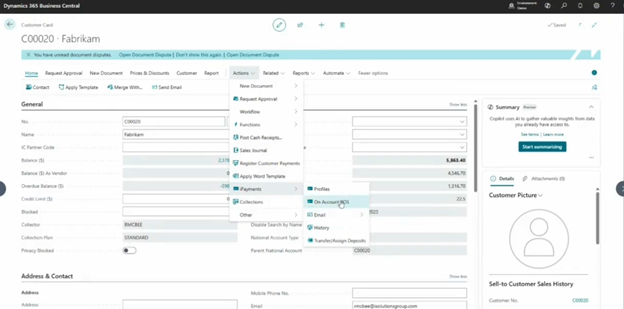
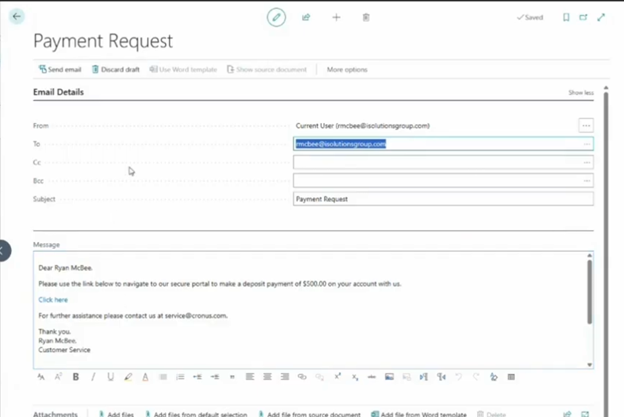
Both “on account” and “request a payment” will allow you to send a payment request via email to your customer. That email will automatically contain a Click to Pay link for direct payment via ACH or credit card. When the customer pays, the cash receipt record will automatically be created in Business Central, which can be applied to an order or document once it exists.
On a Sales Order
The other option for accepting payment up front is to open a sales order.
In Business Central, open the Sales Order List, which will show all open sales orders.
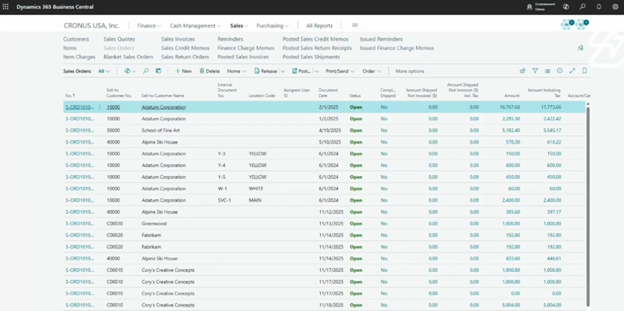
With the iPayments app installed, you’ll see all deposits on open sales orders as well.
To accept an upfront payment, create a new sales order for your customer. Once created, you can manually accept payment by going to Actions > iPayments > Credit Card and entering the card number manually or choosing the card on file.
You also have the option to email the customer a confirmation report that includes a link for payment. It defaults to the full payment amount for the order, unless you enter information into the deposit request line.

When the deposit request line is filled in, that is the amount that will be requested from the customer. Upon payment, a cash record entry will be created. When posted, it will apply the prepayment to the invoice on post and close the invoice.
There is a separate setting for a liability entry for a customer deposit. That is used when you’re taking a deposit far in advance of shipment. When that is completed, it creates an accrual entry and then when the order is posted, the accrual is backed out.
If you don’t see these options in your Business Central environment, you may not have iPayments installed. Reach out to our team to learn more.