
iSolutions continues to expand the capabilities of iPayments for Microsoft Dynamics 365 Business Central with new enhancements designed to make payment and collections workflows easier to access and manage inside Business Central.
The latest updates focus on improving how users interact with iPayments features, making it simpler to navigate key actions related to customer payments, collections, and AR communication while keeping everything organized within the Business Central interface.
Improved Organization of iPayments Actions
As iPayments has grown to support more advanced accounts receivable and payment functionality, additional tools have been added to the iPayments action menu inside Business Central.
To improve usability, a more organized structure for actions has been added to the platform.
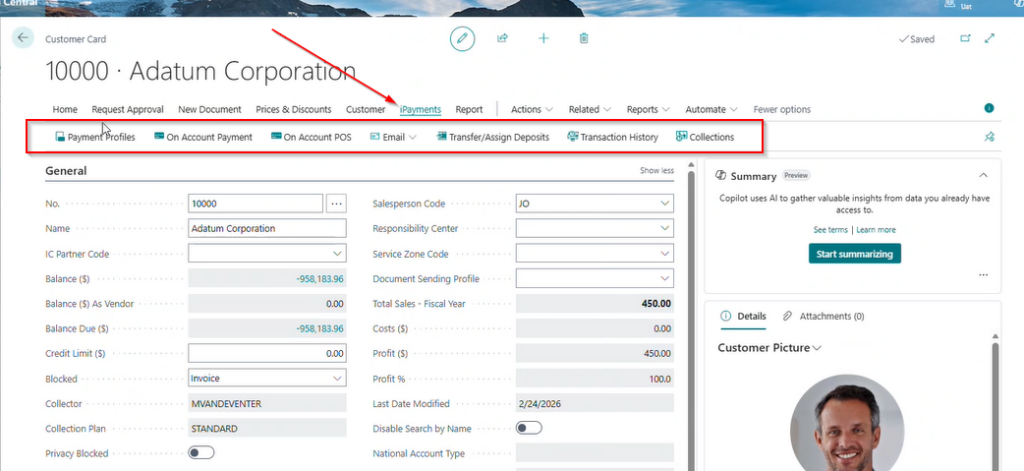
The iPayments area of the customer card now includes a menu with links to the most used areas of functionality including:
- Payment profiles
- On account payment
- On account POS
- Transfer/Assign Deposits
- Transaction History
- Collections
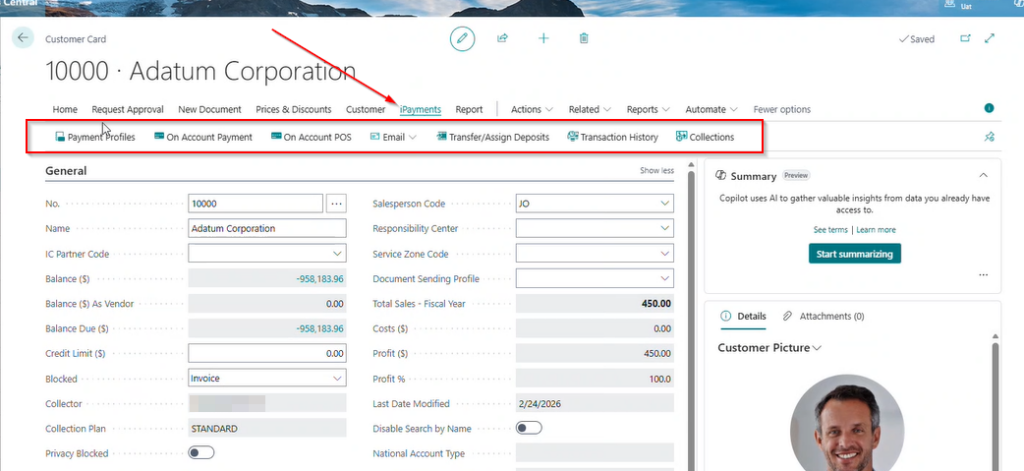
Users can now quickly locate the tools they need without navigating through a long list of individual menu items.
These updates help ensure that as iPayments continues to expand, the experience inside Business Central remains intuitive and efficient for finance teams.
Updates to Customer Payment Profiles
Payment profiles allow businesses to securely store customer payment information for future transactions, helping streamline recurring or repeat payments.
With the latest update, payment profiles are now directly accessible from the iPayments section of the customer card, making it easier for users to manage stored payment methods.
From this area, users can quickly:
- View existing customer payment profiles
- Add new payment profiles
- Update or manage stored payment methods
- Use saved profiles to process payments faster
This improvement helps reduce time spent navigating through multiple screens when managing customer payment information.
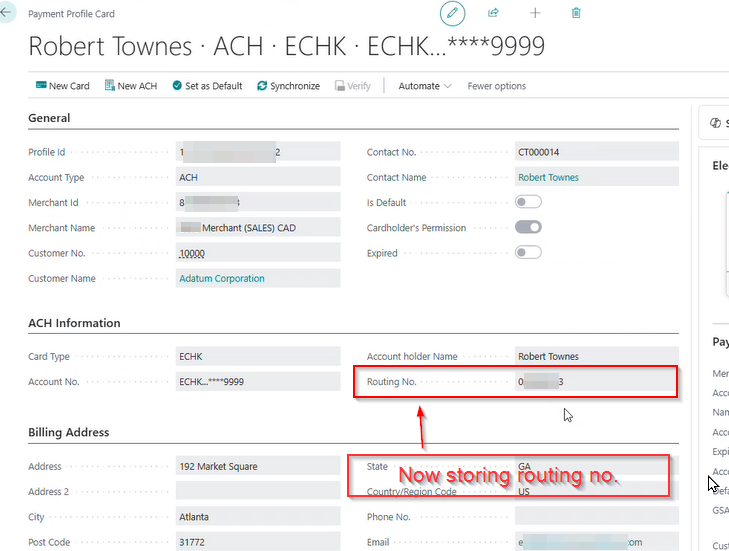
Key Updates to the Customer Payment Profile Card:
- Address information now shown directly on the profile card
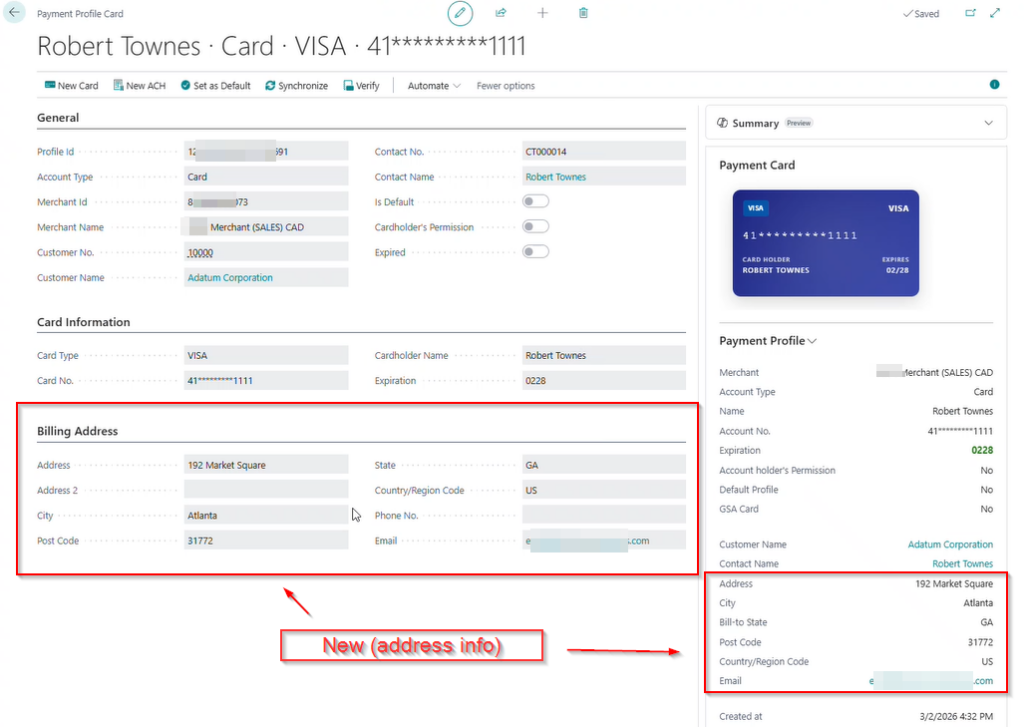
Address information now shown directly on the profile card in iPayments
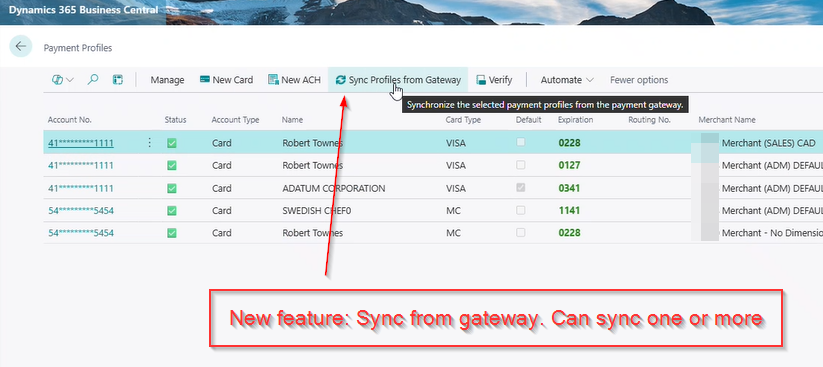
2. Sync to CardConnect.
Users can view information on the account’s recent sync to CardConnect.
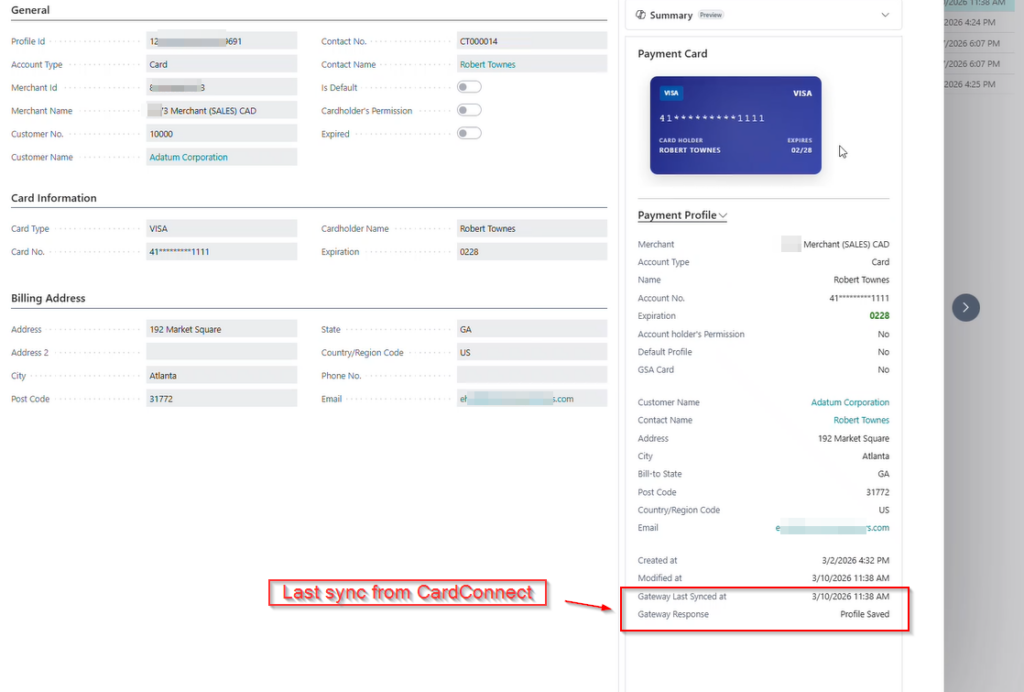
If you would like to complete a real-time sync to CardConnect, you can now do that through the Sync Profiles from Gateway option. That allows you to sync an individual account or multiple simultaneously.
3. Permission to Store Credit Card Information
When entering card details manually in Business Central, a new field allows users to indicate whether the cardholder has granted permission to store the card or ACH information.
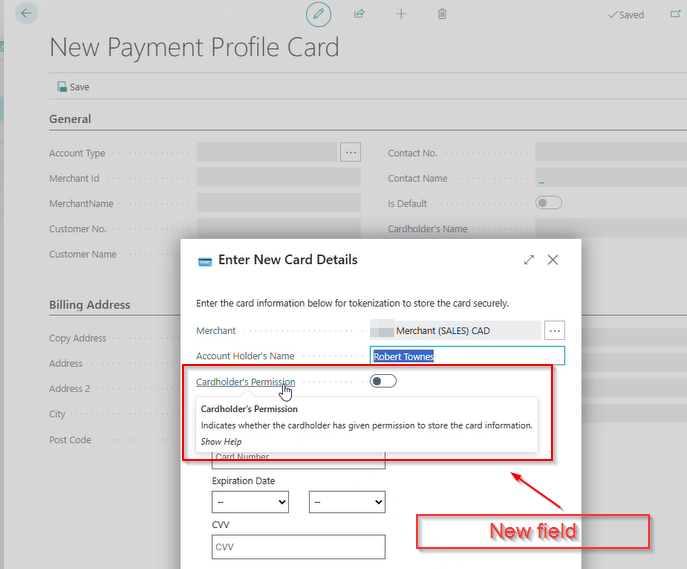
This is an option that you can choose to update each time a card is entered or you can set this to default on the merchant record. The default indicator defaults the cardholder’s permission setting when new payment profiles are created.
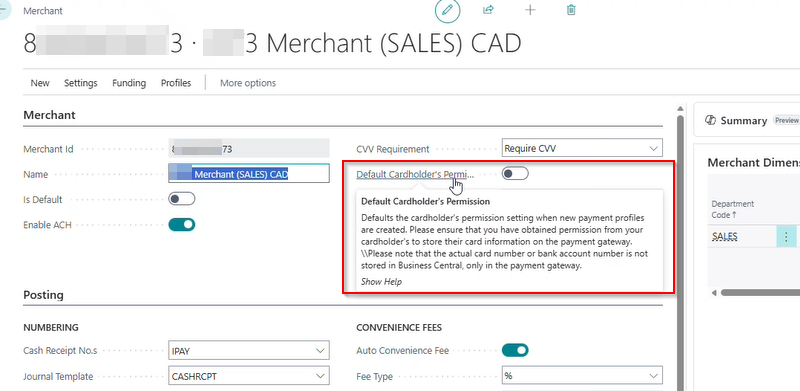
The actual credit card number is not stored in Business Central but encrypted through tokenization.
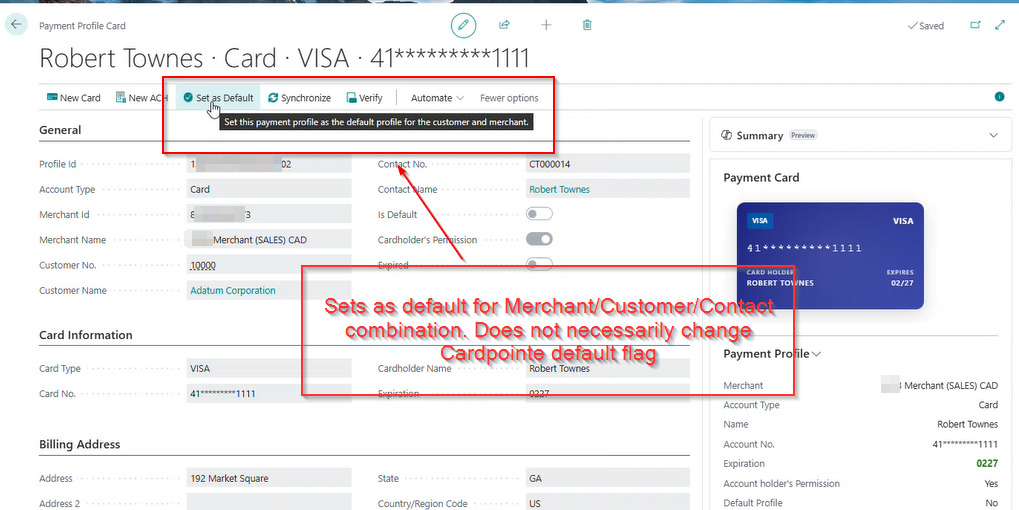
4. Set Payment Default
On the payment profile card you can choose to set a specific payment method as the default for the specific merchant/customer/contact.
5. Store Routing Number
A new field has been added allowing you to store the customer’s routing number directly on the payment profile card.
Streamlined On-Account Payment Processing
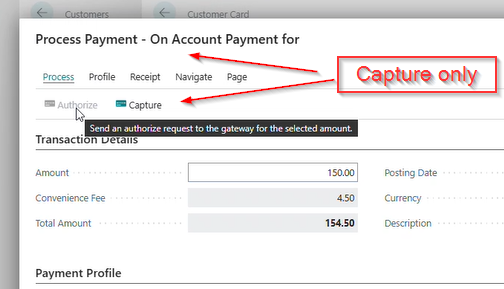
The new On Account Payment and On Account Point of Sale options provide faster access to payment functionality directly from the customer record.
These features allow users to quickly accept and apply payments without needing to navigate through additional transaction screens.
With these tools, teams can:
- Record payments directly on a customer account
- Accept payments at the point of sale
- Apply funds toward outstanding balances
- Reduce manual steps when processing customer payments
By making these actions easier to access, finance teams can process payments more efficiently while working directly inside Business Central.
Easier Access to Customer Transaction History
Visibility into past transactions is critical when managing customer accounts and resolving payment questions.
The Transaction History option within the iPayments menu provides a direct view into payment activity associated with the customer.
From this area, users can quickly review:
- Previous payment transactions
- Payment statuses
- Deposit assignments
- Historical payment activity for the customer account
Added windows and features:
1 Payment Transaction History
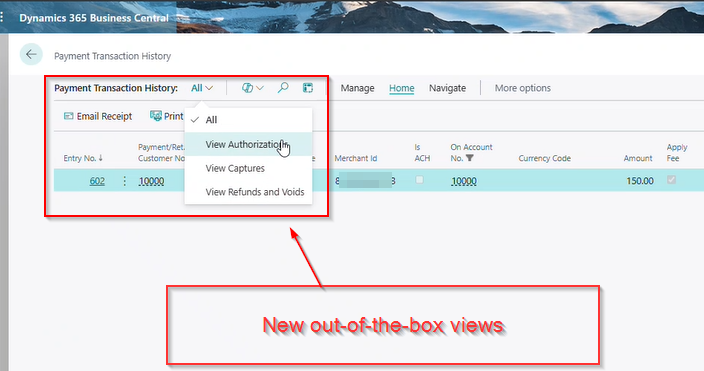
When accessing payment transaction history, a new view allows you not only to view all transactions, but to filter to view authorizations, captures, or refunds and voids.
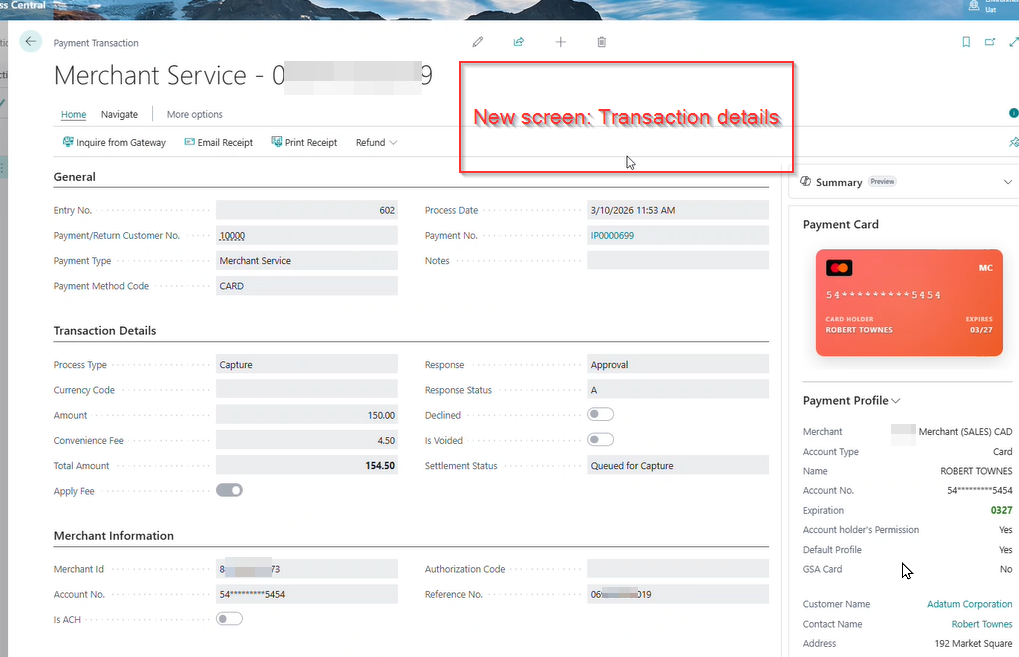
2. Transaction History
A new screen also allows you to view transaction details including the process type, approval information, total amount charged, breakdown of convenience fees applied, merchant ID number, and more.
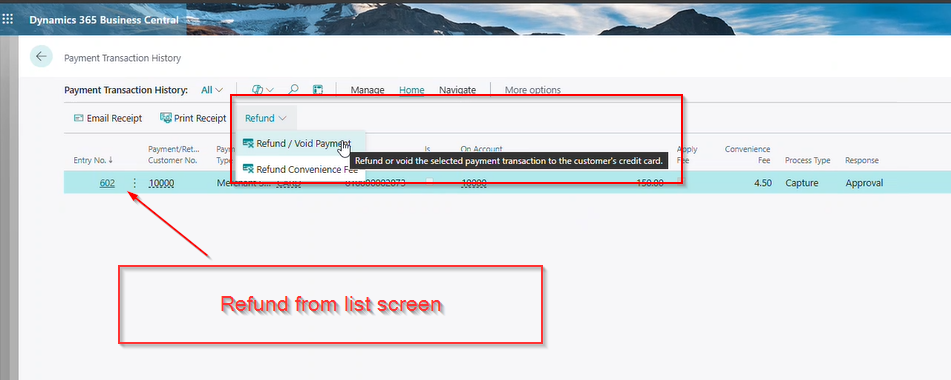
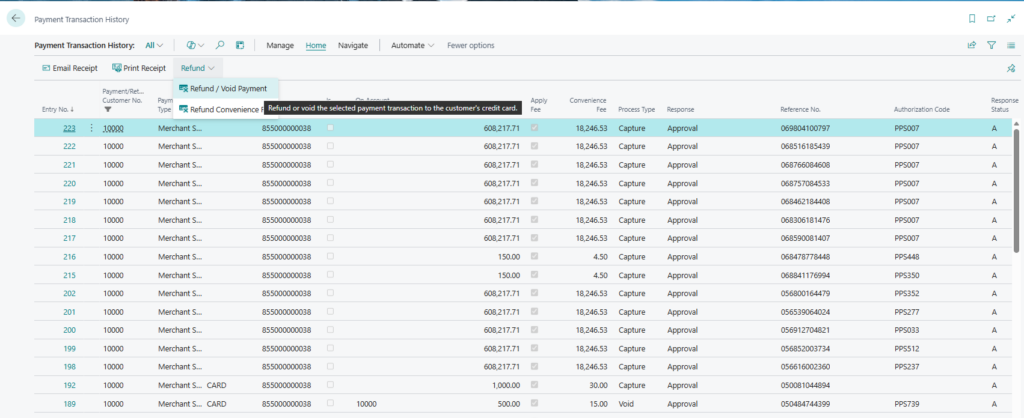
3. Refund from List
This screen allows you to refund/void payments or refund convenience fees directly from the transaction history window.
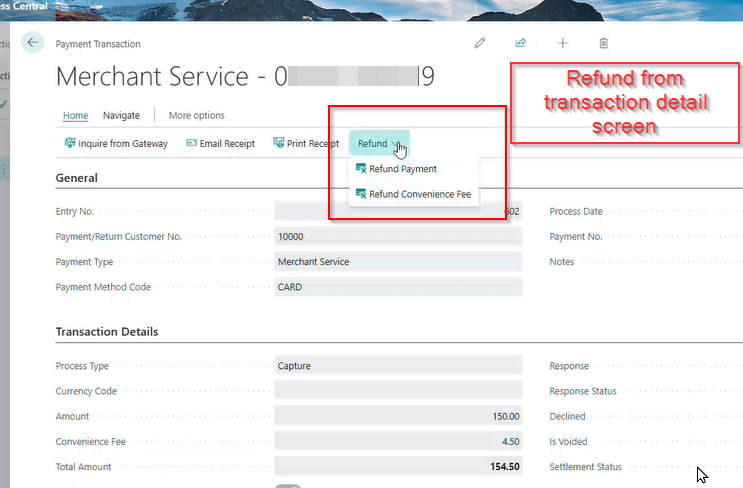
4. Refund from Transaction Detail
This screen allows you to refund/void payments or refund convenience fees directly from the transaction detail window. Voids must always be processed for the full transaction amount and are only applicable before the transaction has been funded. ACH payments must also be refunded in full, regardless of whether the transaction has been funded.
5. Ability to Update Filter
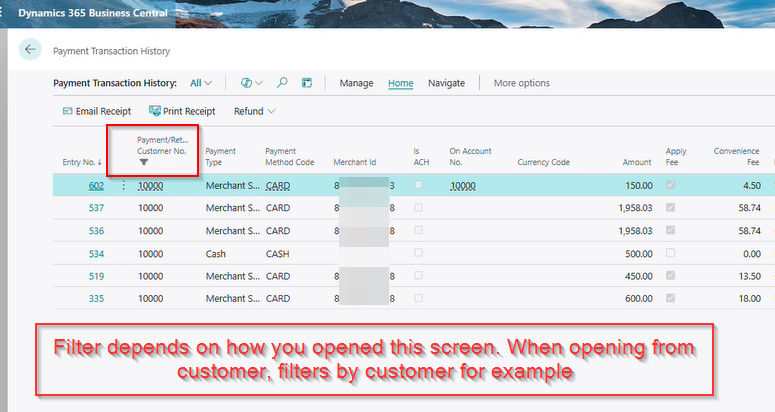
The filter automatically defaults to filter by the screen opened.
When you open the Payment transaction history page, it automatically filters the information based on the source from which it was accessed. For instance, if you open the page from a Customer Card, it will display transactions related to that specific customer. The user can easily remove these filters while navigating the screen.
Having quick access to this information allows finance teams to answer customer questions faster and maintain better visibility into payment activity.
Sales Order + Payment Processing Window Updates
The sales order window has been updated
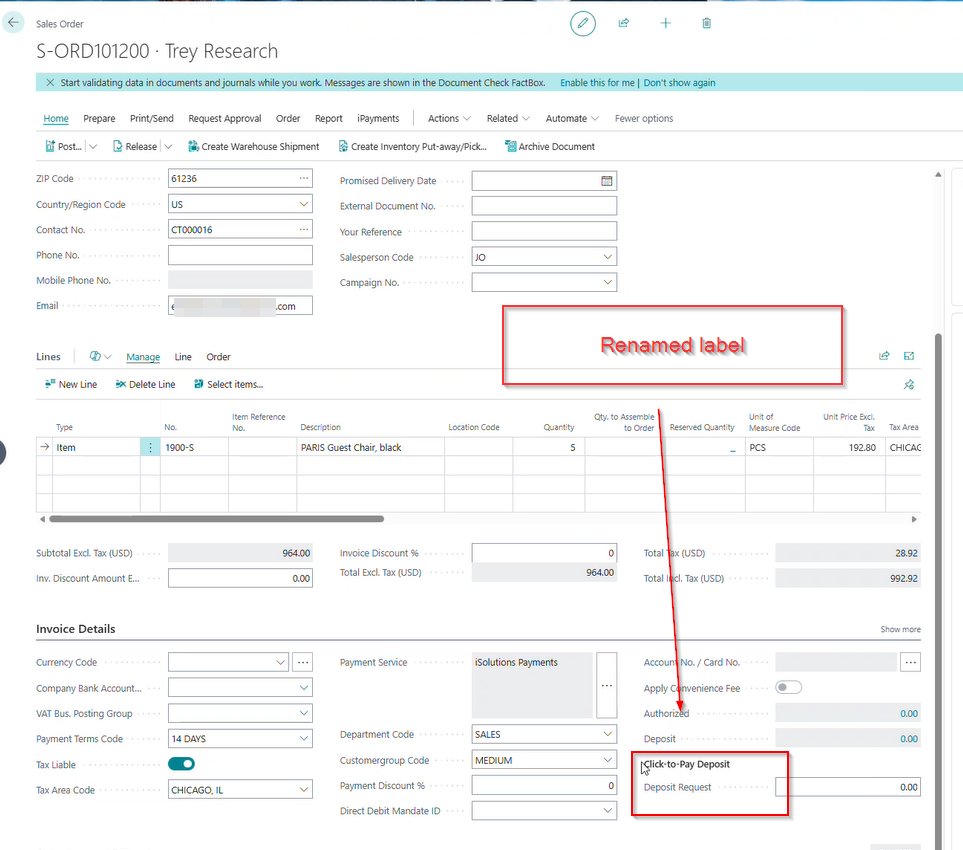
1. Click to Pay Deposit Field Renamed
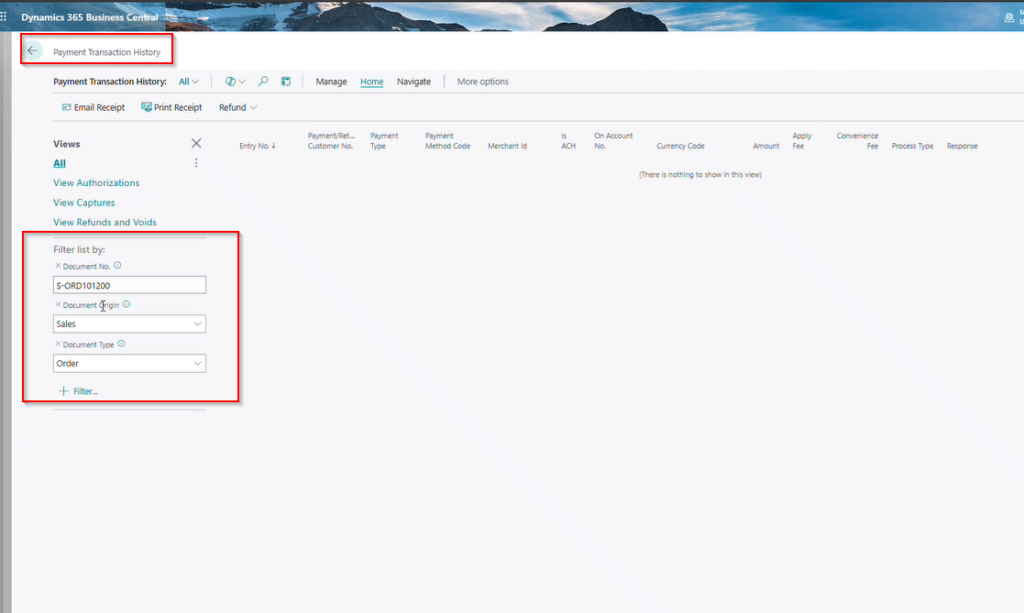
2. Ability to Filter Payment Transaction History
When you open the Payment transaction history page from a source document, e.g. Sales Order, the page will be filtered to the specific document type and document number. These filters allows uses to easily identify transactions related to the source document. While the user work in this screens, the user can change or remove these filters.
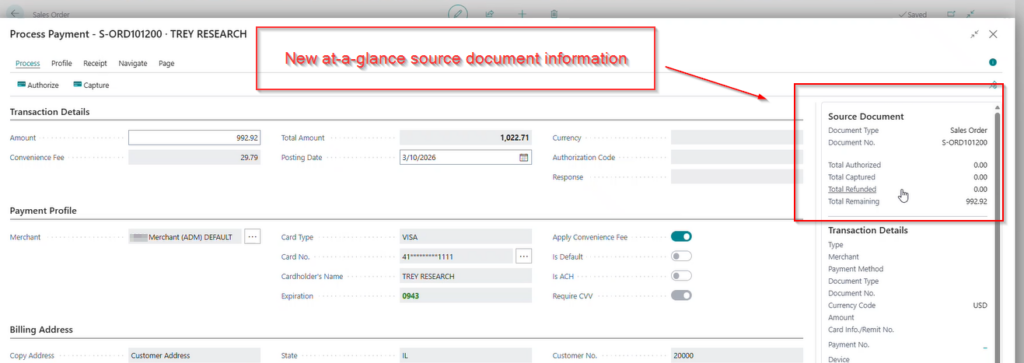
3. Source Document Information
On the process payment screen, you can now easily view source document information such as document type, number, total authorized, total captured, total refunded, and total remaining.
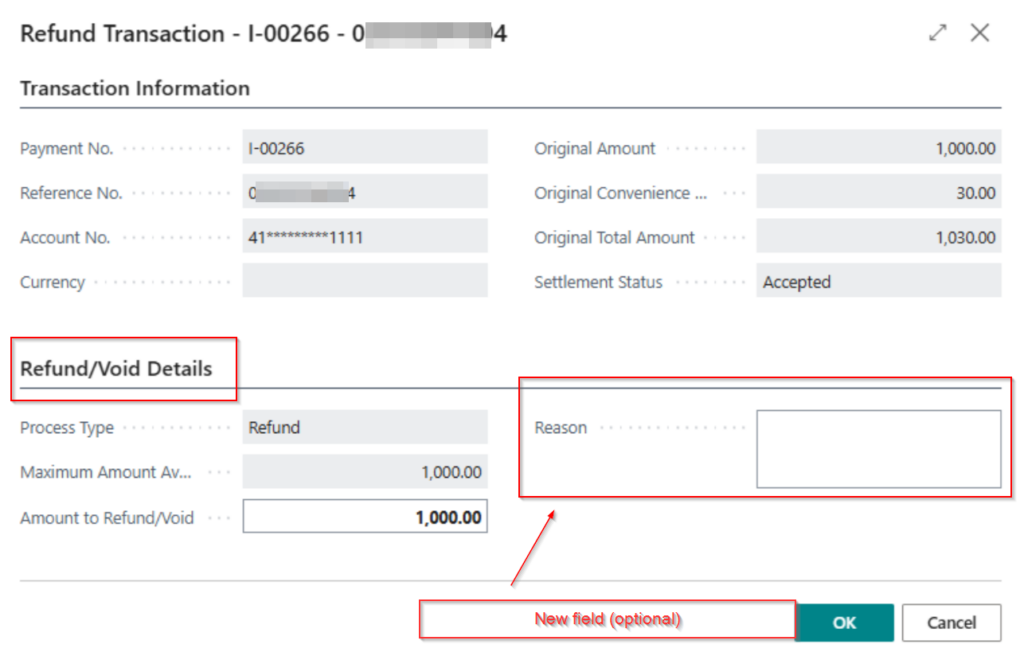
4. Refund/Void Payment to Customer’s Credit Card
On the payment transaction history window you have the option to refund/void payment or refund convenience fee back to the customer’s credit card.
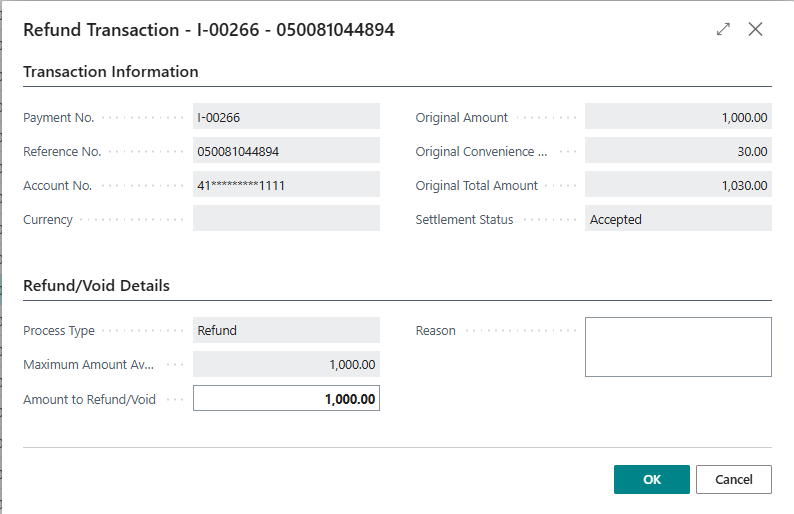
When an entry is selected for refund, you can enter a specific amount to refund/void and enter a reason for the refund or void.
Simplified Deposit Management
The Transfer/Assign Deposits functionality allows organizations to easily manage how customer payments are applied and assigned.
This feature helps finance teams organize and reconcile payment deposits by allowing them to:
- Transfer deposits between records
- Assign payments to specific invoices or accounts
- Ensure funds are applied correctly within Business Central
Making this feature directly accessible from the iPayments menu simplifies the process of managing customer deposits and payment allocations.
Built-In Access to Collections Tools
Managing overdue invoices and outstanding balances is a key part of the accounts receivable process.
The Collections option within the iPayments menu provides quick access to collections-related functionality, allowing teams to manage receivables directly from the customer record.
With this capability, users can quickly:
- Access collections workflows
- Review outstanding balances
- Manage customer payment follow-up activities
- Take action on overdue accounts
This integration helps finance teams stay on top of receivables without leaving the Business Central environment.
Designed for the Way Business Central Teams Work
Because iPayments is built natively inside Microsoft Dynamics 365 Business Central, these enhancements integrate seamlessly into the existing ERP experience.
By bringing key payment and accounts receivable tools directly into the customer card, the latest updates help organizations:
- Reduce manual navigation between screens
- Process payments faster
- Improve visibility into customer payment activity
- Manage AR workflows more efficiently
As iPayments continues to evolve, iSolutions remains focused on delivering improvements that simplify payment operations and strengthen accounts receivable automation within Business Central. Additional release information can be found here.
Have questions about the updated experience?
If you’re a current user, log a support ticket. If you’re not working with iSolutions yet, reach out to our team here.